Open any video or audio file from the library to play it.
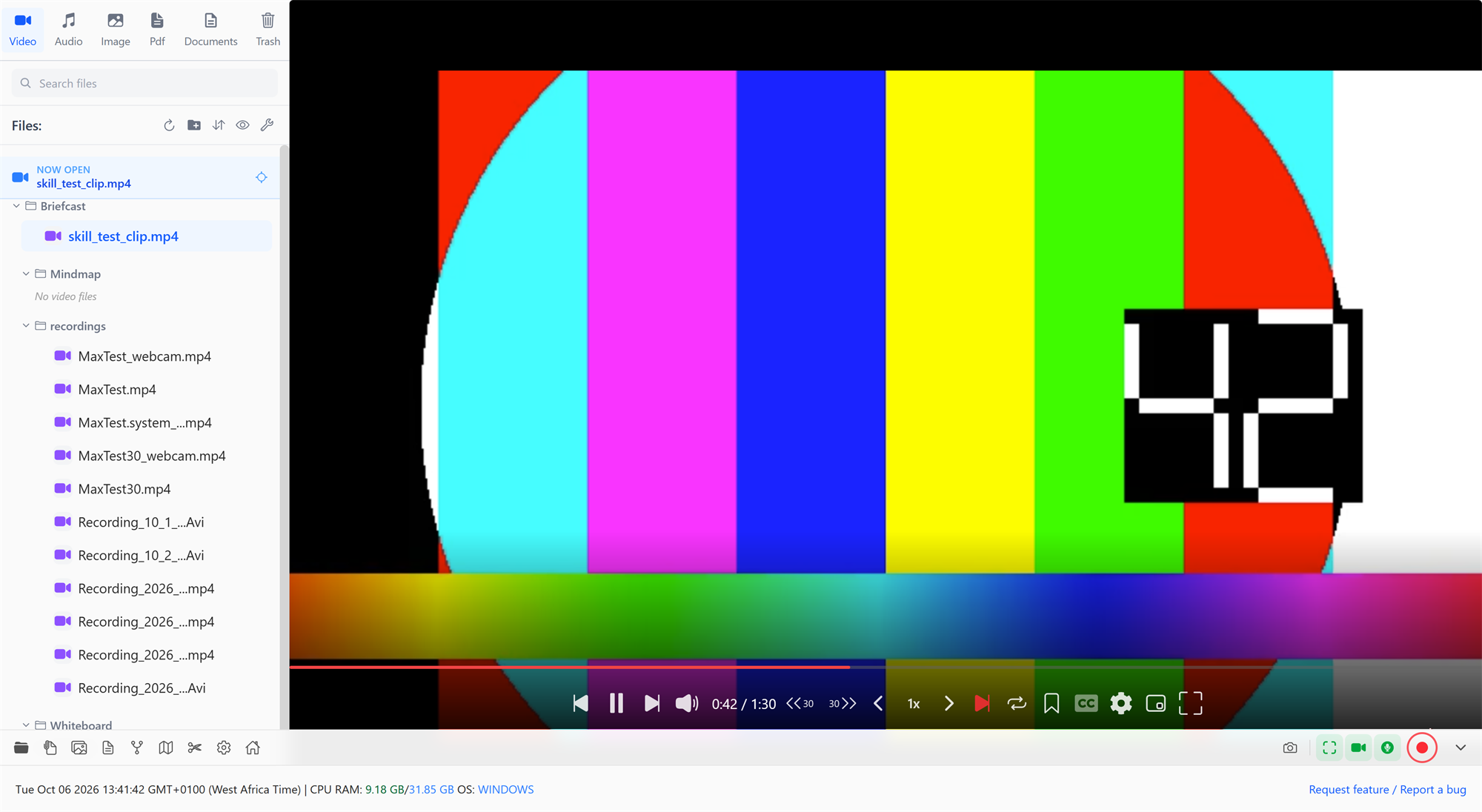
Controls
- Play / pause: click the video, or press Space or K.
- Seek: drag the progress bar. Hovering over it shows a preview of that moment.
- Skip back / forward: the skip buttons jump 30 seconds by default. Double-click a skip button to change the amount.
- Speed: J slows down, L speeds up, and the 1x button resets.
- Volume: the speaker button, or M to mute.
- Frame by frame: , and . step back and forward one frame (playback pauses first).
- Previous / next file: Shift+P and Shift+N, or the arrow buttons beside the player.
- Fullscreen (F), theater mode (T), and picture-in-picture (I), which keeps the video in a small floating window while you work in another app.
Press ? at any time to show all the player's shortcuts.
Briefcast remembers how far you got in each video and audio file and picks up from there next time, unless you'd only watched the first few seconds. Each library tab also reopens the last file you had open in it.
Captions
Open Captions in the player's controls:
- Generate from audio · offline: Briefcast listens to the video and writes captions with its built-in speech recognition. It runs entirely on your computer, so nothing is uploaded, and it works without an internet connection. You can let it detect the language or choose one. Generating takes a while for long videos; once done, captions for that language are saved and come back instantly.
- Add captions (.vtt / .srt): load a caption file you already have.
If you close Briefcast while captions are being generated, it picks up where it stopped the next time you open the video.
Style them the way you like to read them, with the same 15 looks, position, size, words per line and word emphasis as the video editor's captions. The caption list follows playback; click a line to jump to it, or copy or download the text. These captions are only shown while you watch; they're never added to the video file. To burn captions into a video, use Captions in the video editor.
Press C to show or hide captions.
Chapters
Chapters mark moments in a long video so you can jump straight to them, for example the start of each topic in a lecture.
- Open Chapters and add one at the current moment.
- Click a chapter to jump to it; delete one with its delete button.
- Chapter markers also appear on the progress bar; hover over one to see its name.
Chapters are saved alongside the video and are there the next time you open it. They don't change the video file itself.
Noise reduction while watching
If a recording has background noise, use Clean up audio in the video editor. You hear the effect live while the video plays, and it's applied for real when you export.
Audio files
Audio files play in the same player. The progress bar shows the track's waveform, so you can see where the quiet and loud parts are, and hovering shows the time at that point. Use the arrow keys to move to the previous or next track in the list.
Autoplay (in the player's settings) moves on to the next file in the list when one finishes.
Formats
Briefcast plays MP4, MOV, MKV, WebM and the common audio formats directly. Files that Windows' built-in video engine can't play, such as some AVI or WMV files, play through Briefcast's own decoder, or are converted to a temporary playable copy the first time you open them. Your original file is never changed.