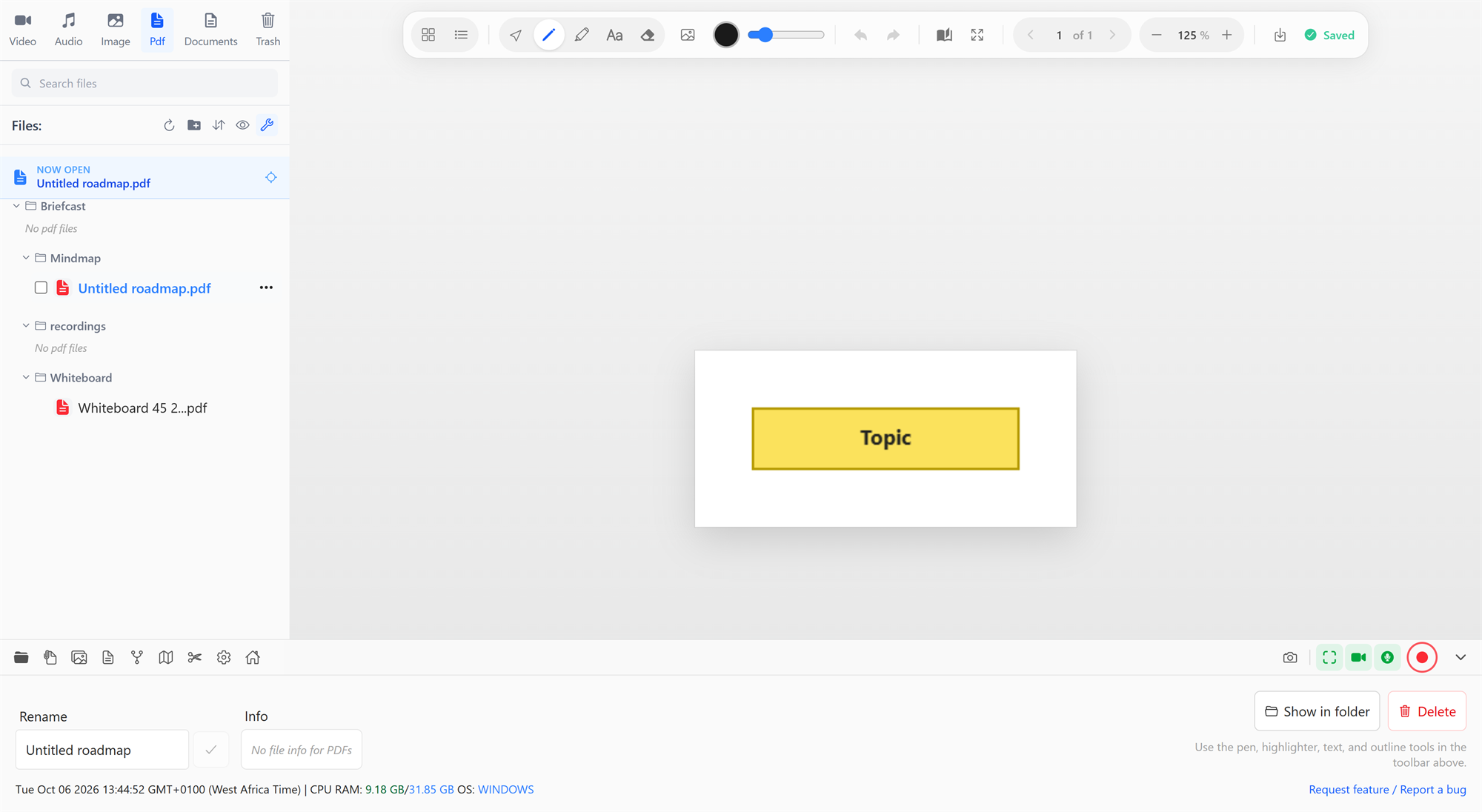
Open any PDF from the library's Pdf tab to read it and mark it up: underline and highlight, write notes in the margin, add images, and export a copy with everything flattened in. The original PDF is never changed.
Reading
- Page navigation: ← and →, the previous/next buttons, or type a page number to jump to it. You can also scroll or swipe.
- Zoom: Ctrl+= and Ctrl+-, or type a zoom level; Ctrl+0 resets it.
- Two-page view (B): shows pages side by side, like an open book.
- Page thumbnails: a sidebar of every page; click one to go there.
- Table of contents: the PDF's own outline, when it has one.
- Fullscreen presentation (F): shows the PDF full screen for presenting slides or a paper. Scroll, swipe or use the arrow keys to turn pages, and press Esc to exit.
Text in the PDF can be selected and copied.
Marking up
| Tool | Key | What it does |
|---|---|---|
| Select | V | Pick, move and edit what you've added |
| Pen | P | Freehand drawing |
| Highlighter | H | Translucent highlighting that snaps to the height of the text line you drag across |
| Text note | T | A text box anywhere on the page, with bold, italic, colours, a background and alignment |
| Eraser | E | Removes strokes it touches |
| Insert image | Place a picture on the page; you can also paste one with Ctrl+V |
Pick a colour from the swatches. The size slider sets the stroke width, text size or eraser size; [ and ] adjust it from the keyboard.
Undo (Ctrl+Z) and Redo (Ctrl+Shift+Z) cover every change.
Your markup is saved automatically; the toolbar shows Saving… and Saved. It's stored alongside the PDF, not inside it, so the original document stays untouched, and your notes are there every time you reopen it.
Exporting
Export as a PDF with your markup creates a new file, <name> (annotated).pdf, next to the original, with every page and your annotations combined. It opens in any PDF reader and is ready to send or print.
Defaults
In Settings → PDF Annotator you can choose the tool, zoom level, pen and highlighter colours, and stroke width that every PDF opens with.