Install
- Download the installer from withbriefs.com/briefcast. You can also get it from the GitHub releases page; download the file ending in
x64-setup.exe. - Run it. If Windows shows "Windows protected your PC", click More info → Run anyway. Windows shows this for any installer that isn't code-signed yet; signed installers are on the way.
- The installer finishes on its own and Briefcast opens.
Briefcast needs Windows 10 or 11, 64-bit. Everything it uses (the video engine, captions, audio clean-up, HEIC photo support) comes in the installer, so there's nothing else to install.
Updates
Briefcast checks for a new version each time it starts. When one is available, a small card appears in the top-right corner: click Install and restart, or Later to be asked again next time. While a recording is running, the update waits until you stop.
Uninstall
Open Windows Settings → Apps → Installed apps, find Briefcast and choose Uninstall. Your recordings and other files are not deleted; they stay in your Briefcast folder (see Where your files live).
The Briefcast window
-
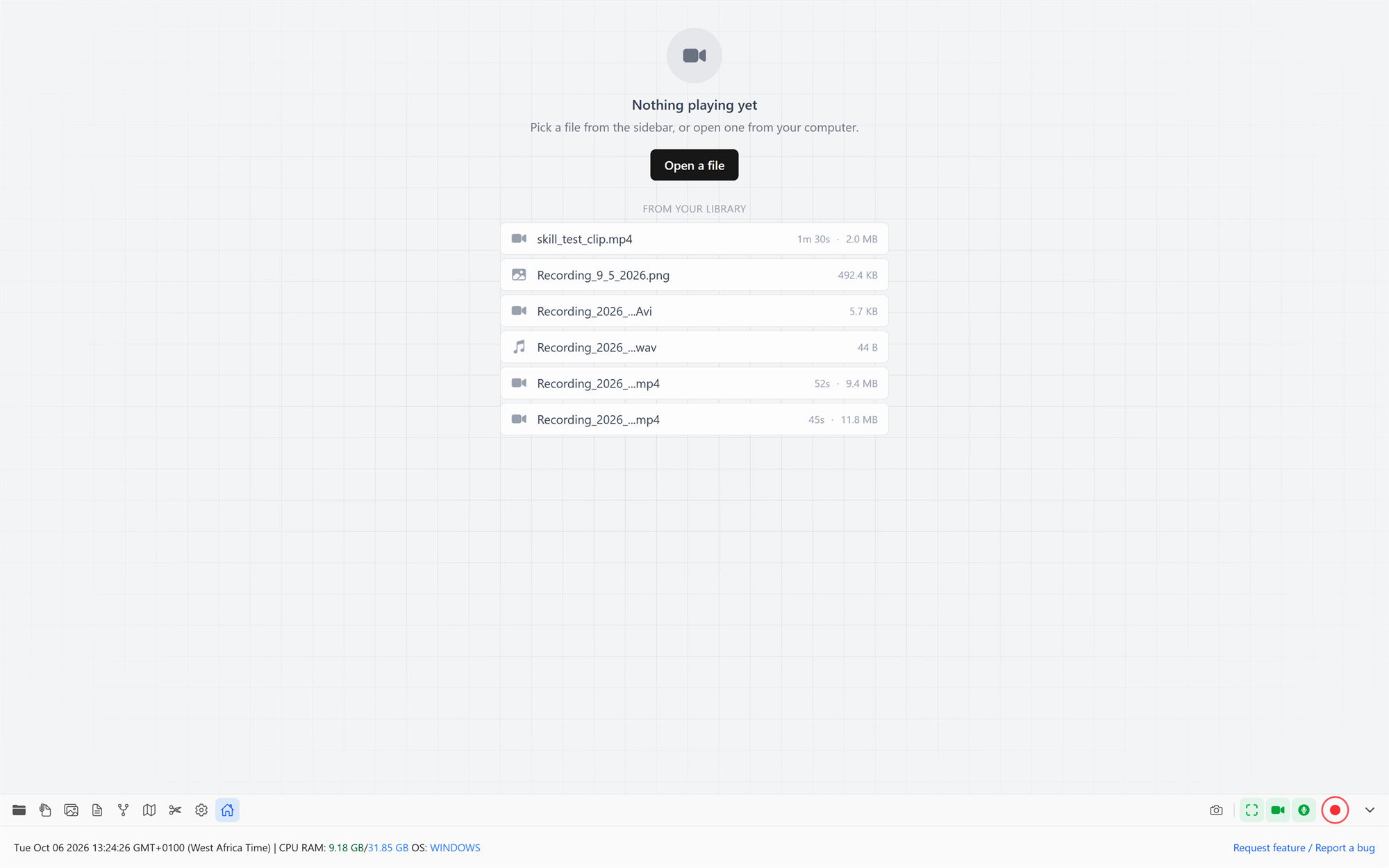
Main area. Shows whatever is open: a video, a photo, a PDF, a doc, a whiteboard. With nothing open it shows the home screen, with your pinned and recent files, documents, whiteboards and mind maps under From your library.
-
Sidebar. Your library: every recording, screenshot, photo, PDF and document, sorted by type. Show or hide it with the folder icon at the bottom-left. See The library.
-
Bottom bar, left side. The apps:
Icon What it opens Folder Show or hide the file list Paperclip Open a file from anywhere on your computer Pictures Board: compose images into one layout Document Docs Branches Whiteboard Map Mindmap Scissors Video editor Gear Settings House Back to the home screen -
Bottom bar, right side. Recording controls: the camera icon takes a screenshot; the screen, webcam and microphone icons choose what to record; the red button starts recording. The arrow at the far right opens the recording panel with more options. See Recording.
Your first recording
- In the bottom-right corner, make sure the screen and microphone icons are green (click an icon to turn it on or off).
- Click the red record button. The Screen Options window opens, where you pick a whole screen, one monitor or a single window.
- Start recording. A small recording bar shows the time; press Ctrl+Shift+H if you want it on screen.
- When you're done, click Stop in the bottom bar or on the recording bar, or press Ctrl+Shift+R.
- A window opens straight away and shows "Finishing your recording…" while Briefcast cleans up the audio and puts the video together. Then it shows the finished file, with buttons to Play it or Convert format.
Your recording appears in the library under Video. Open it, and click the scissors icon to edit it in the video editor.
Where your files live
By default, everything Briefcast makes is saved in Videos\Briefcast in your user folder. Recordings go into its recordings folder; docs, whiteboards, mindmaps and boards each have their own folder there too.
To use a different place (another drive, or a synced folder), go to Settings → Storage → Change Location…. Briefcast moves everything to the new place for you. See Settings.
Getting help
- Press ? while watching a video to see the player's shortcuts.
- Settings → Help & Shortcuts lists every global shortcut and a summary of each feature.
- Request feature / Report a bug, at the bottom-right of the window, is the quickest way to reach the developer.
- Troubleshooting covers the common problems.