Briefcast · Free for Windows, macOS and Linux

Stop juggling five apps
to explain one idea.

Record your screen, cut the video by deleting words from its transcript, add captions, then write the paper or notes that go with it. Briefcast replaces your screen recorder, video editor, captioning service and word processor with one free app that runs entirely on your computer. No account. No uploads. No watermark.

222 downloads

Version 0.1.7 · 111 MB · Windows 10 & 11, 64-bit · Free · Released 25 Nov 2026

Also for macOS 63 MB Linux 116 MB

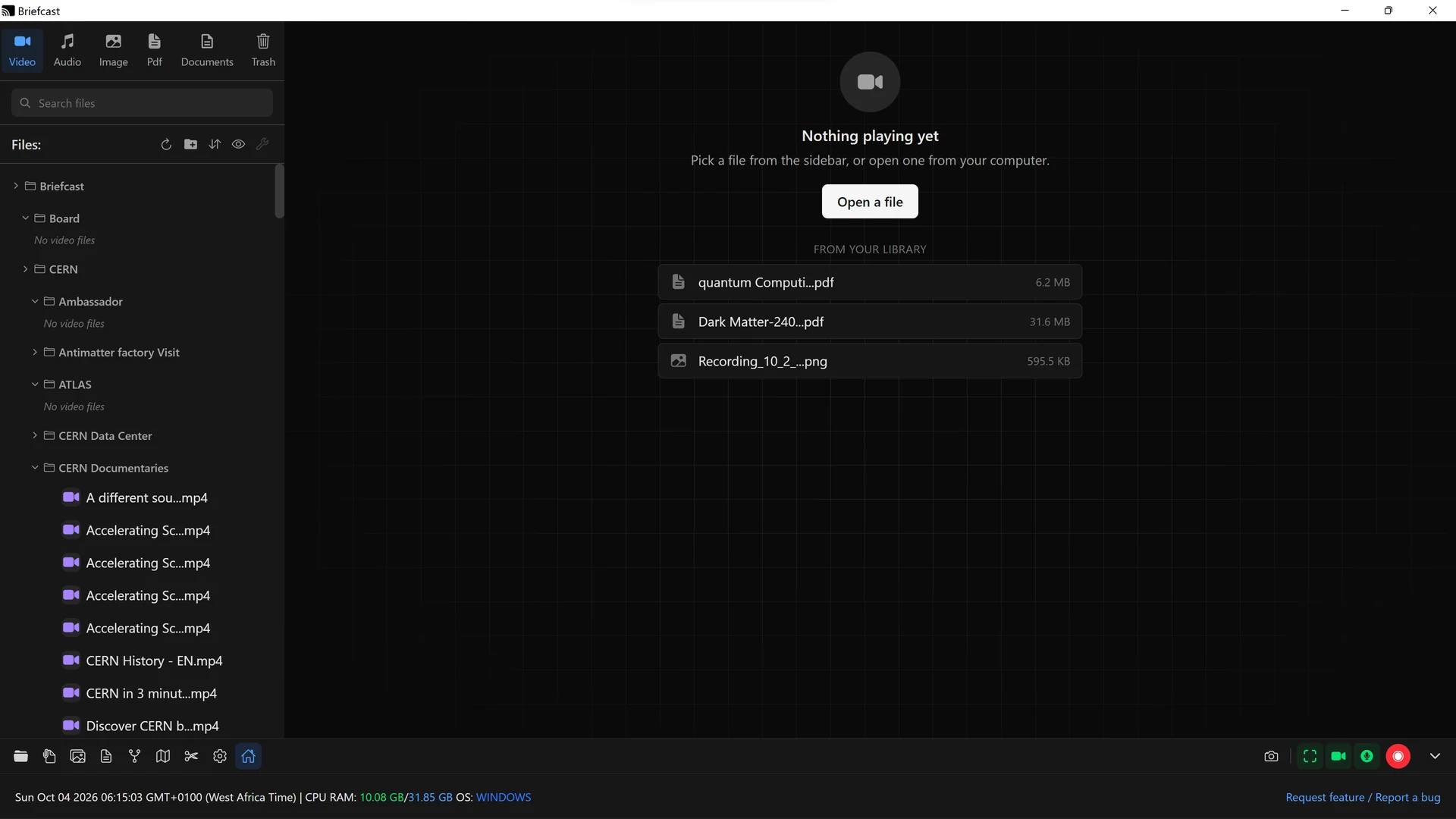
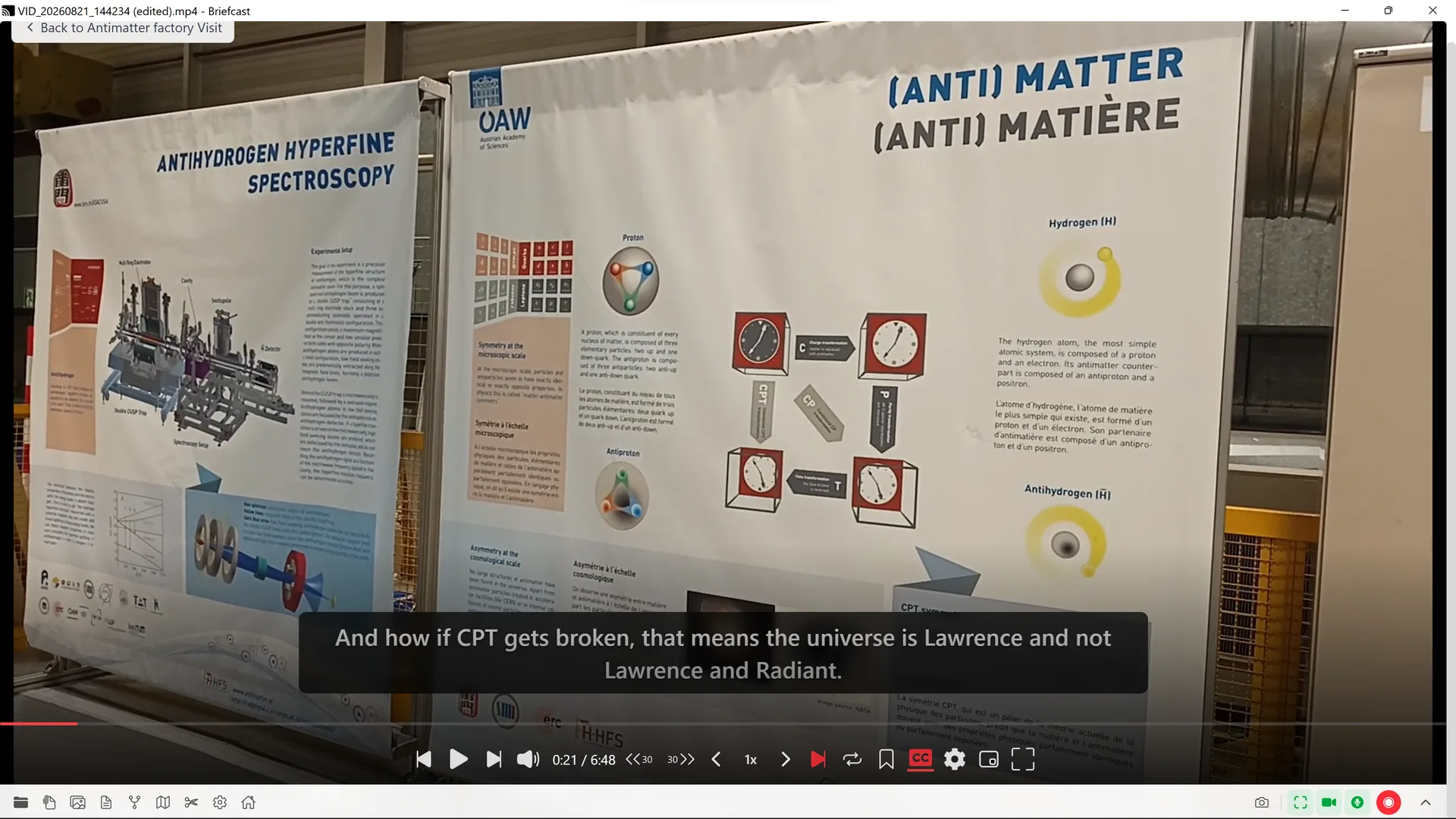
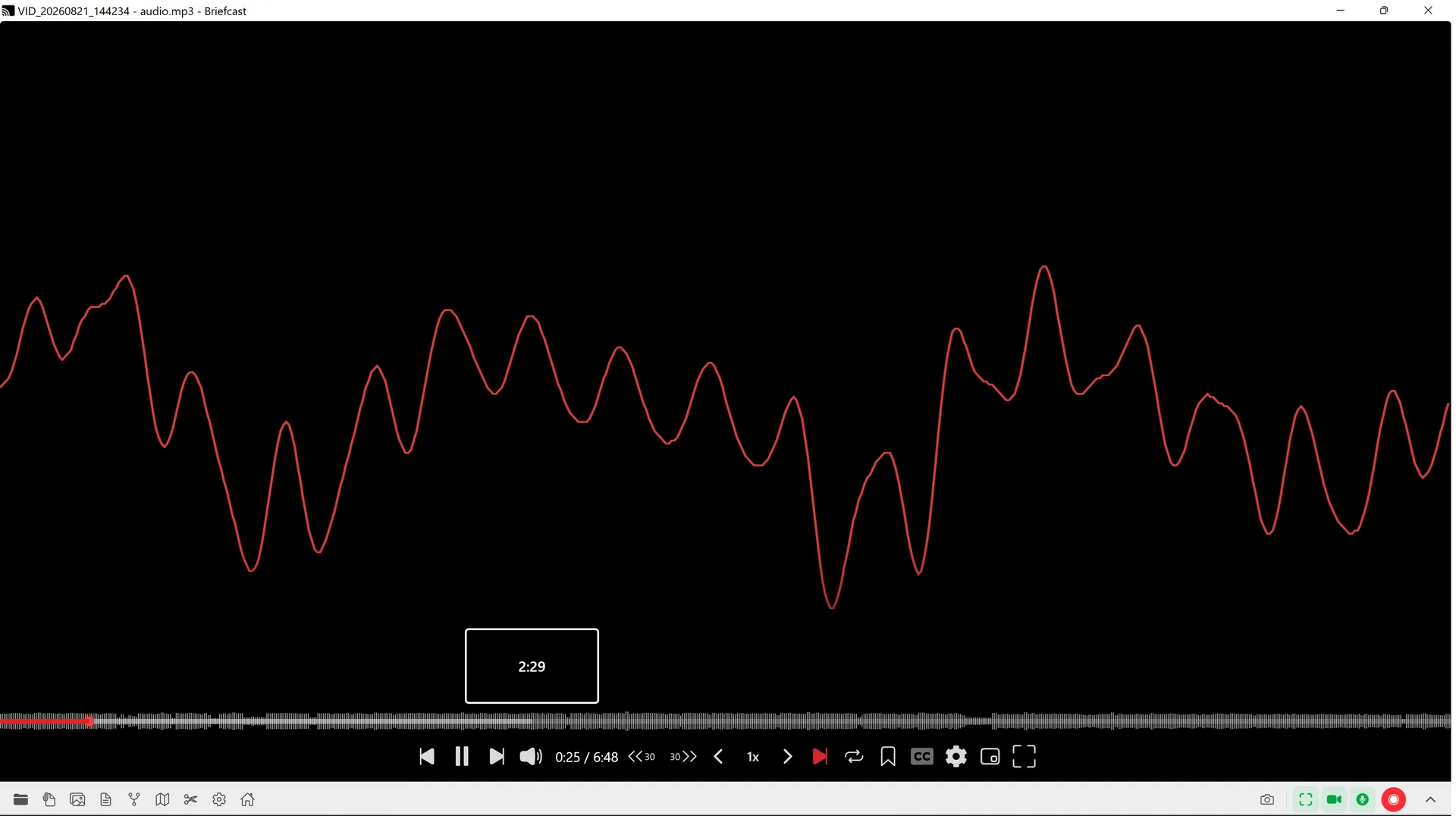
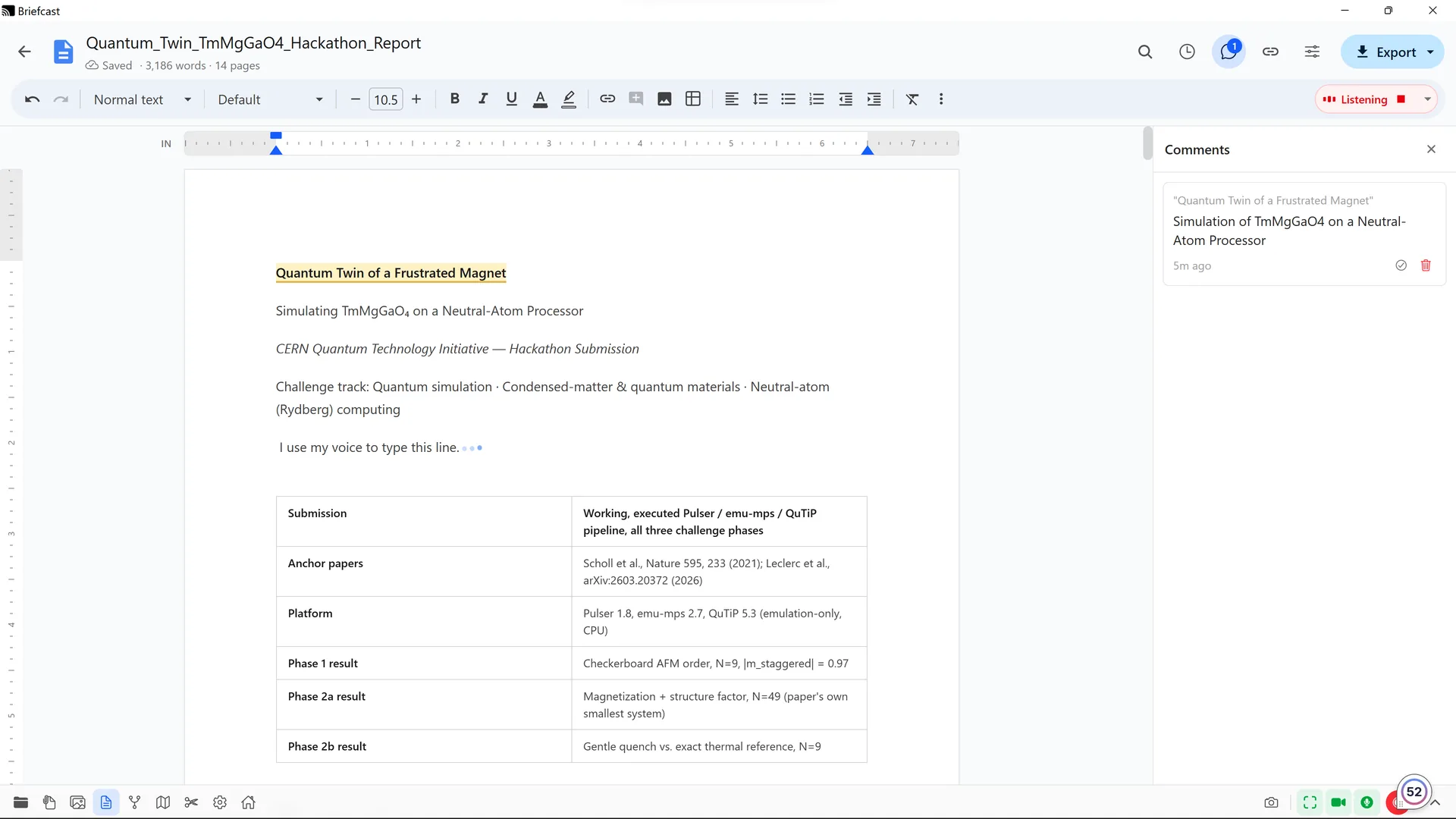
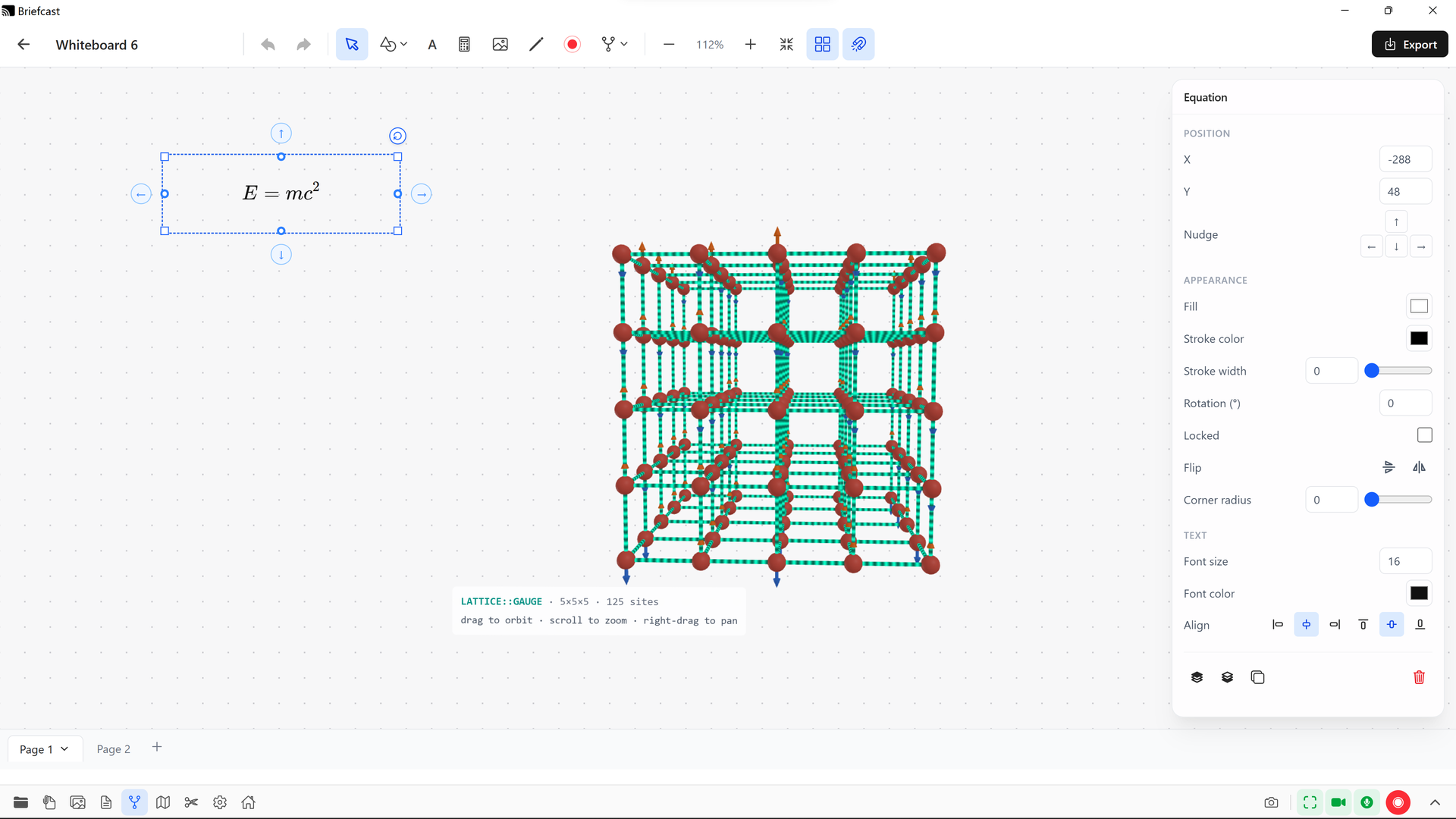
The Briefcast app window, with the file library on the left and recording controls along the bottom Briefcast: Screen recording Briefcast: Phone as a camera Briefcast: Video editor Briefcast: Offline captions Briefcast: Audio cleanup Briefcast: Docs Briefcast: Whiteboards & mind maps Briefcast: Design Studio & PDFs Briefcast: Annotate & Privacy Shield
What it does

Five apps’ worth of work. One free download.

01 · Record

Record your screen, camera and phone

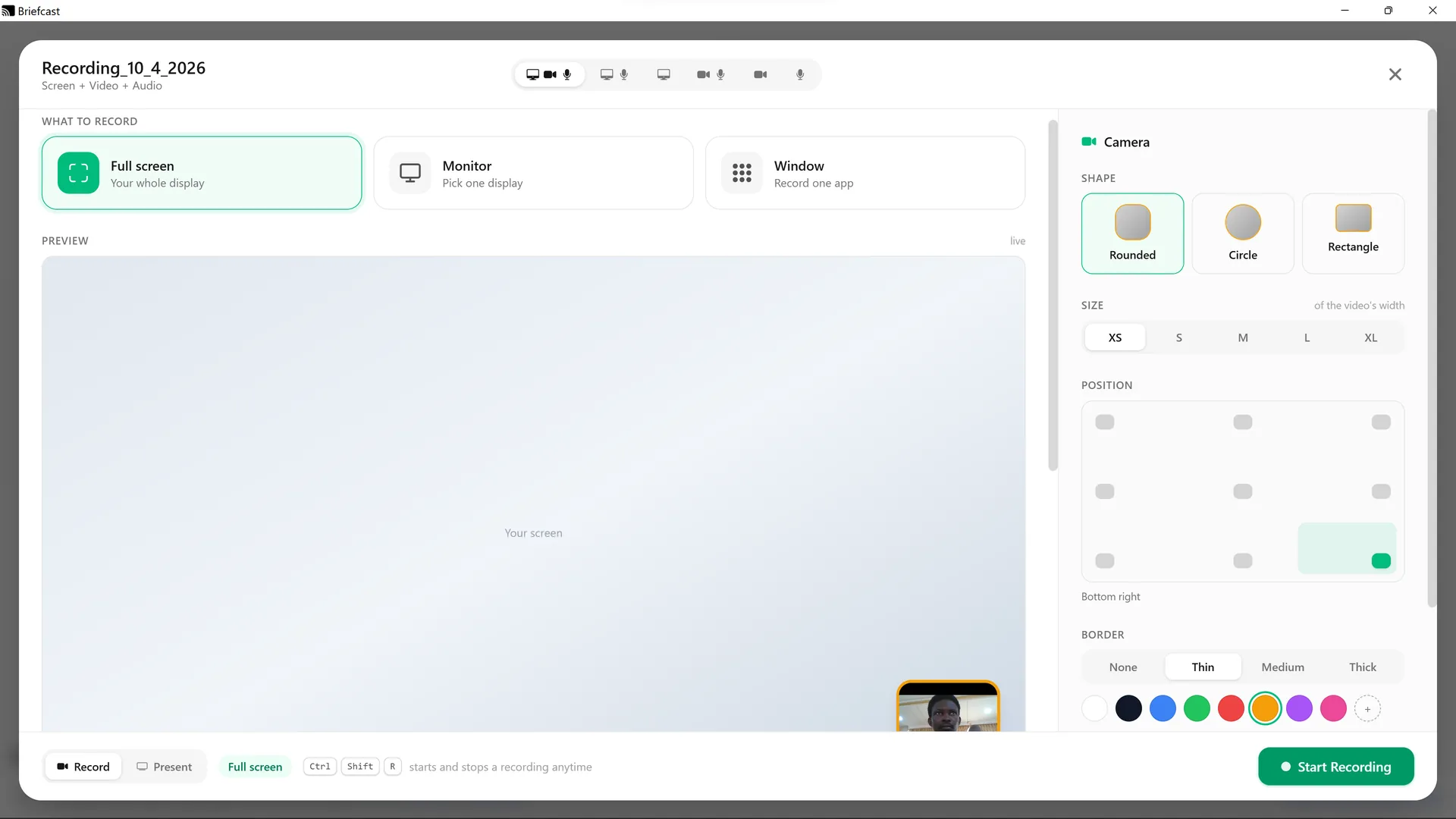
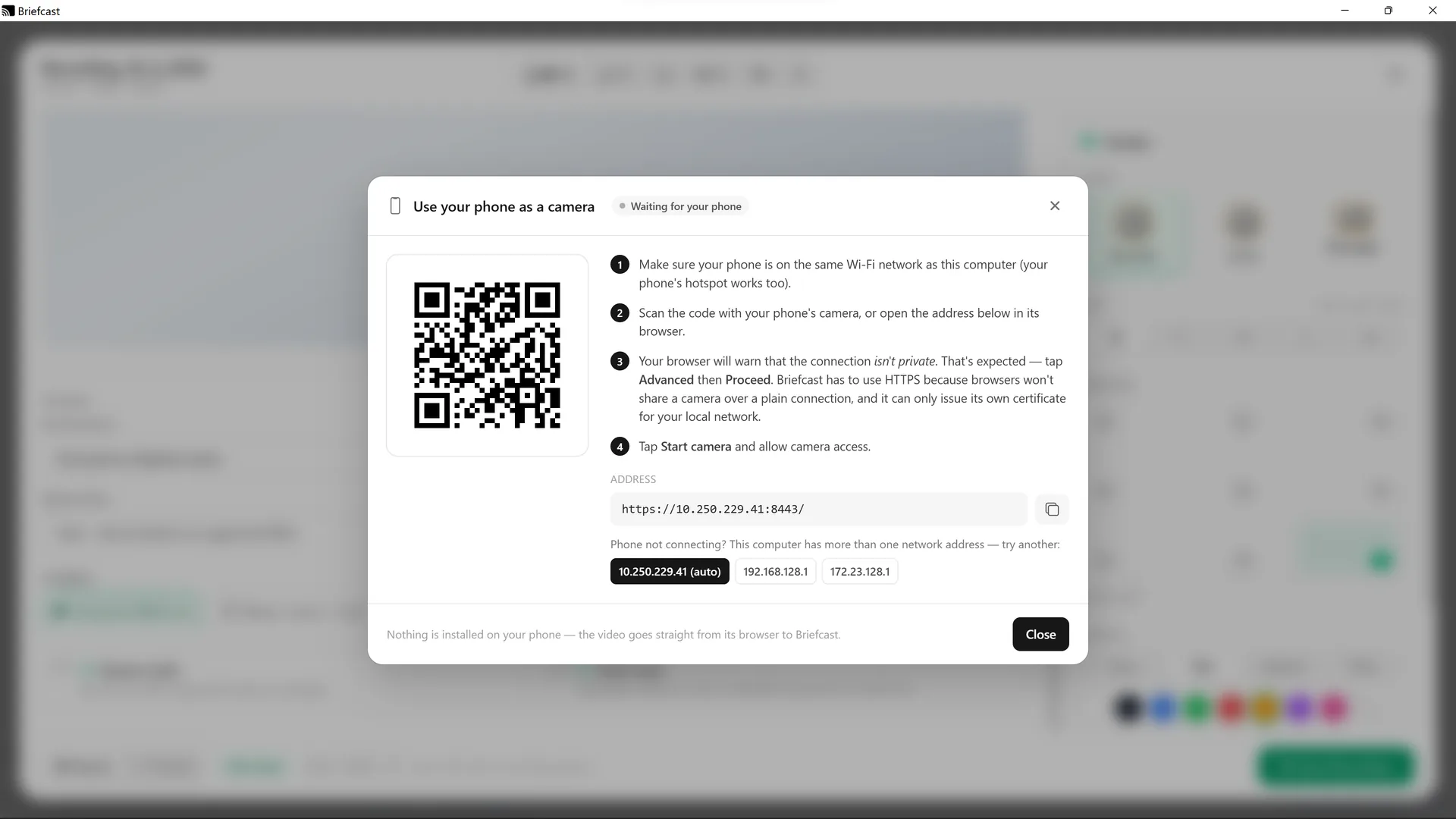
Record your whole screen, one monitor or a single window, with zero-lag live webcam background blur/replacement, a live mic level meter, and system audio — across Windows, macOS multi-monitor, and Linux Wayland or X11. Scan a QR code to use your phone as a second camera with nothing to install on it. If capture drops mid-take, Briefcast recovers within seconds while audio carries on.

02 · Transcript

Edit video like editing text

See everything said in a video as text and delete words to cut them. One click removes “um”s, stutters and long pauses, and shows how much time each saves first. Transcription runs offline, timed to the actual speech, so every cut lands cleanly.

03 · Timeline

A real editor when you need one

Cut, trim and rearrange clips with live transitions, speed ramps, motion keyframes and colour grading with .cube LUTs. Zoom in on mouse clicks, blur anything private, and export for 16:9, 9:16, 1:1 or 4:5 with the crop following the action. Or turn a folder of photos into a video. Your original recording is never changed.

04 · Captions

Captions without a subscription

Turn speech into captions in 21 languages and burn them into the video in 15 styles, from a clean subtitle to word-by-word highlights. Or dictate straight into a document with voice commands like “new paragraph”. Your audio never leaves your computer.

05 · Audio

Clean sound from any mic

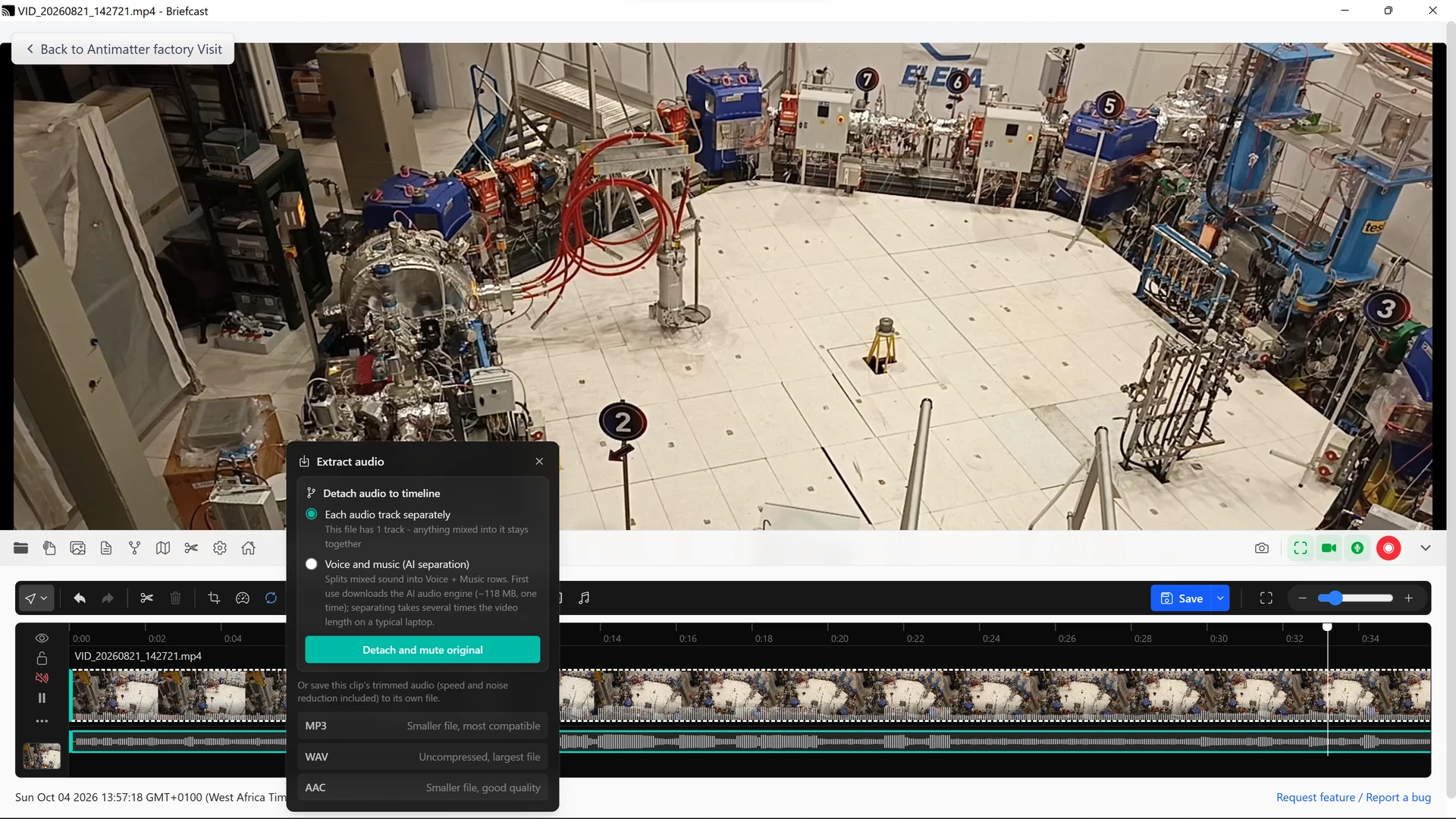
Remove background noise or isolate your voice with AI, cut mains hum and rumble, and split a mixed track into separate voice and music. Hit -14 LUFS for streaming or -16 for podcasts in one step.

06 · Docs

Write the paper, not just the video

A word processor with Google Docs and Word fidelity: LaTeX equations, two-column layouts, borderless layout tables, right-aligned dates, numbered figures, and citations from a DOI or arXiv ID in Nature, APS, IEEE or APA style. 13 templates, headers, footers and watermarks. Opens and saves Word files, exports PDF, and emails straight from the app.

07 · Whiteboard & Mind Maps

Diagrams, slides & figures on one infinite canvas

Sketch diagrams, mind maps and learning roadmaps with Study Mode, 1-keystroke branching, auto-layout, Containment Frames for smooth slide presentations, and PowerPoint (.pptx), Google Slides, PDF, Mermaid or Markdown import. Includes 35+ offline fonts, tapered calligraphic ink, a realtime LaTeX Maths editor, 60 fps data plots, and crisp PNG, SVG and multi-page PDF exports.

08 · Design Studio & PDFs

Design social graphics & mark up any PDF

Create YouTube thumbnails and social posts in the built-in Design Studio — with 1-click canvas presets, 8 photo shape masks, non-destructive filters and adjustments, thumbnail typography, 16 blend modes, on-device AI background removal, and 1×/2×/3× exports. Plus full PDF pen, highlighter and notes markup, Image-to-PDF conversion, and background file compression.

09 · Annotate & Privacy Shield

Draw over any app & blur private info live

Trigger screen annotation from the dock, floating recording pill, or Ctrl+Shift+D over any app on every monitor — with Pen, Marker, Neon, Laser, and a presenter hand pointer. Built-in Privacy Shield lets you drag click-through blur boxes (B), blur whole windows (Ctrl+Alt+B), and automatically blur WhatsApp chats, passwords, API keys and card numbers live while you record.

Local-first

Your work stays on your computer.

Recordings, documents and annotations are ordinary files in a Briefcast folder on your disk. Briefcast works fully offline, and nothing is uploaded unless you choose to share it.

Optional backup and sync with your Briefs account is coming, so moving to a new computer won't mean losing anything.

Privacy

What Briefcast sends us.

To learn which features matter and to fix crashes, Briefcast sends anonymous usage statistics and crash reports. You can turn this off at any time in Settings → Privacy, and it stops immediately.

  • Sent: which features are used (for example "recording finished", with its length and type), crash details with your user folder removed from file paths, the app version, your operating system, and a random ID for your installation that isn't linked to you.
  • Never sent: file names, file contents, recordings, documents, or anything you type.

Updates are checked against our GitHub releases and every update is signed, so Briefcast only installs builds we published. See our privacy policy.

Getting started

Installed in a minute.

  1. 1
    Download the installer for your system - Windows, macOS or Linux.
  2. 2
    Run it. Windows: no admin rights needed, it installs just for you. Mac: open the .dmg, drag Briefcast to Applications, and allow it once on first launch (see the two options below). Linux: make the AppImage executable and run it, or install the .deb.
  3. 3
    Record. Briefcast updates itself when new versions come out — you'll get a prompt, never a forced restart.
First time installing on macOS?

Because Briefcast isn't Apple-notarized yet, macOS may show “Apple could not verify Briefcast is free of malware” when you open it the first time. After dragging Briefcast into Applications, allow it once with either option:

  1. Option 1 — System Settings (recommended): Open Briefcast once and click Done on the popup → open System Settings → Privacy & Security → scroll to Security → click Open Anyway next to Briefcast and confirm with your password or Touch ID.
  2. Option 2 — One-line Terminal command: Open Terminal and run xattr -cr /Applications/Briefcast.app, then open Briefcast normally.
What do I need?
Windows 10 (version 1803 or later) or Windows 11, 64-bit; macOS 11 or later, Apple Silicon or Intel; or 64-bit Linux. A recent multi-core CPU makes caption generation and audio cleanup noticeably faster.
Is it the same on a Mac or Linux?
It's the same Briefcast, with native support for Windows, macOS (Apple Silicon & Intel, including multi-monitor window capture), and Linux (Wayland PipeWire + X11 fallback, plus Intel/AMD VA-API & NVIDIA NVENC hardware encoding). Mac and Linux use the ffmpeg on your computer (brew install ffmpeg on Mac, sudo apt install ffmpeg on Linux; version 5.1 or newer) and let you know at startup if it's missing. Because the Mac app isn't Apple-notarized yet, allow it once via System Settings → Privacy & Security → Open Anyway or xattr -cr /Applications/Briefcast.app. A few things are Windows-only for now: the interactive screenshot crop overlay, Privacy Shield live desktop blur, and USB phone transfer (Wi-Fi companion transfer works everywhere).
Why does captioning download something the first time?
The speech-recognition model (about 150 MB) is fetched the first time you use captions or dictation, so everyone else gets a smaller installer. After that it works offline.
Is it free?
Yes.
Complete workflow

Record offline in Briefcast. Publish to readers on Briefs.

01 · Desktop (Offline)

Record, cut & write the notes

Capture your screen and camera, trim dead air by editing words in the transcript, clean your audio, and write the companion notes or paper directly in Briefcast — no login required.

02 · Briefs (Audience)

Send it as a brief & grow your list

Bring your exported notes or explainer into Briefs to publish on your personal page, deliver via Email & WhatsApp, collect replies at your @withbriefs.com address, and track clicks.

Create free Briefs account → Free starter emails & AI tokens · No card required

Your next explainer is one download away.

Download for Windows